Why Am I Getting Lag Spikes? Proven Ways to Reduce Wi-Fi Gaming Lag
If you’ve ever shouted, “Why am I getting lag spikes?” during an intense gaming session, you’re not alone. Lag spikes over Wi-Fi are one of the most frustrating issues gamers face. They can ruin competitive matches, disrupt immersion, and even cost you victories. Understanding the causes and solutions is essential for smoother gameplay.
This guide provides a comprehensive, SEO-optimized, and expert-backed breakdown of why lag spikes occur and how to reduce lag spikes. Whether you’re playing Call of Duty, Fortnite, Valorant, or any other online title, these strategies will help you minimize interruptions and maximize performance.
Understanding Lag Spikes in Gaming
What Are Lag Spikes?
Lag spikes are sudden increases in latency (ping) that cause temporary delays between your actions and the game’s response. Unlike consistent high ping, lag spikes are unpredictable and disruptive.
Common Symptoms
- Sudden freezes or stutters during gameplay
- Delayed actions (e.g., shooting, moving, or casting spells)
- Rubberbanding (your character snaps back to a previous position)
- Voice chat interruptions
Causes of Lag Spikes Over Wi-Fi
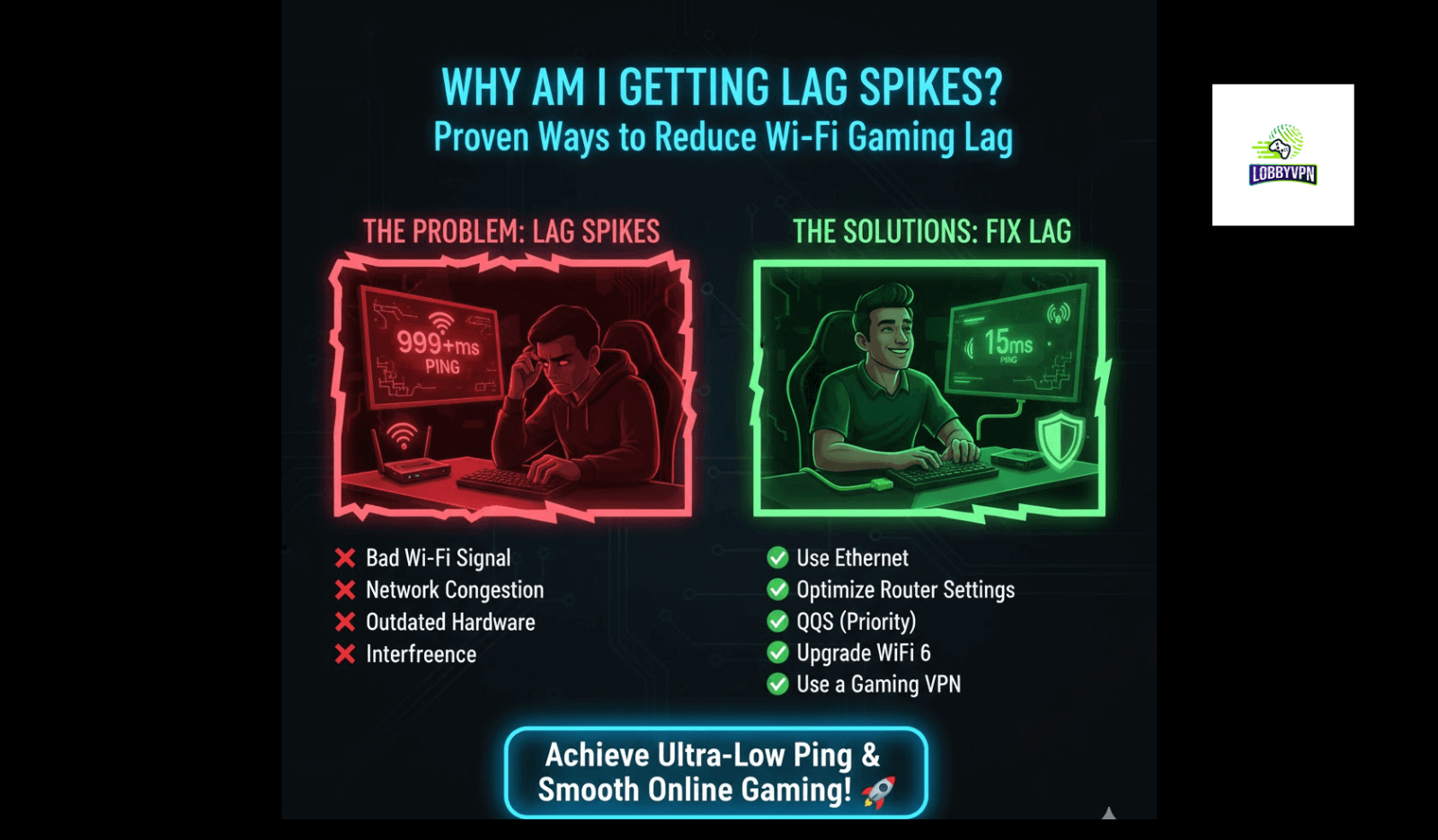
1. Network Congestion
Multiple devices streaming, downloading, or browsing can overload your Wi-Fi bandwidth.
2. Weak Signal Strength
Distance from the router, walls, and interference from other electronics weaken Wi-Fi signals.
3. ISP Issues
Your internet service provider may throttle speeds or experience outages.
4. Router Limitations
Older routers may not support modern gaming demands, leading to unstable connections.
5. Background Applications
Updates, downloads, or cloud syncs running in the background consume bandwidth.
6. Server-Side Problems
Sometimes, lag spikes are caused by the game’s servers rather than your network.
How to Reduce Lag Spikes Over Wi-Fi While Gaming
Optimize Your Wi-Fi Setup
- Place your router in a central location.
- Minimize physical obstructions (walls, furniture).
- Use the 5 GHz band instead of 2.4 GHz for faster speeds.
- Upgrade to Wi-Fi 6 routers for better stability.
Limit Bandwidth Usage
- Pause downloads and updates during gaming.
- Restrict streaming services like Netflix or YouTube on other devices.
- Use Quality of Service (QoS) settings to prioritize gaming traffic.
Reduce Interference
- Keep your router away from microwaves, cordless phones, and Bluetooth devices.
- Change your Wi-Fi channel to avoid overlap with neighbors.
Upgrade Your Hardware
- Invest in a gaming router with advanced traffic management.
- Use mesh Wi-Fi systems for larger homes.
- Consider a wired Ethernet connection for competitive gaming.
Monitor Background Processes
- Disable auto-updates during gaming sessions.
- Close unnecessary applications.
- Use Task Manager (Windows) or Activity Monitor (Mac) to track bandwidth usage.
Advanced Solutions for Persistent Lag Spikes
Use a VPN for Gaming
Gaming VPNs can sometimes reduce lag by routing traffic through optimized servers. However, choose carefully—some VPNs increase latency.
Adjust In-Game Settings
Lowering graphics or network-intensive features can reduce strain on your system.
Contact Your ISP
If lag spikes persist, ask your ISP about gaming-optimized plans or fiber connections.
Consider DNS Optimization
Switching to faster DNS servers (Google DNS, Cloudflare) can improve response times.
Comparison Table: Wired vs. Wi-Fi Gaming
| Feature | Wi-Fi Gaming | Wired Ethernet Gaming |
|---|---|---|
| Latency | Higher, prone to spikes | Lower, stable |
| Reliability | Affected by interference | Consistent |
| Setup | Easy, flexible | Requires cable |
| Competitive Gaming | Risk of lag spikes | Preferred choice |
Preventive Measures: Long-Term Stability
Regular Router Maintenance
- Restart your router weekly.
- Update firmware regularly.
Network Monitoring Tools
- Use apps like NetSpot or WiFi Analyzer to detect weak spots.
- Track latency with PingPlotter or similar tools.
Future-Proofing Your Setup
- Upgrade to fiber internet if available.
- Invest in gaming routers with Wi-Fi 6E support.
FAQ
Q1: Can a CPU cause lag spikes? Yes. While lag spikes are usually network-related, a CPU under heavy load (background apps, overheating) can cause stuttering that feels like network lag.
Q2: Is Wi-Fi 6 better for gaming? Absolutely. Wi-Fi 6 offers lower latency, better bandwidth management, and reduced interference compared to older standards.
Q3: Do VPNs reduce lag spikes? Sometimes. VPNs can reroute traffic through optimized servers, but results vary. For COD players, specialized services like LobbyVPN claim to bypass SBMM while reducing latency.
Q4: Should I use Google DNS for PS5? Yes. Switching to Google DNS or Cloudflare often improves response times and reduces lag spikes.
Conclusion: Take Control of Your Gaming Experience
Lag spikes can turn an exciting match into a frustrating ordeal. By asking “why am I getting lag spikes?” and applying the solutions outlined here, you can dramatically improve your gaming performance.
From optimizing your Wi-Fi setup to upgrading hardware and monitoring bandwidth, each step contributes to a smoother, more reliable connection. For competitive gamers, switching to Ethernet remains the gold standard, but with the right strategies, Wi-Fi can be nearly as effective.
Don’t let lag spikes ruin your gaming sessions. Start by analyzing your setup today, apply these fixes, and enjoy seamless gameplay. Share this guide with fellow gamers who constantly ask “why am I getting lag spikes?”—because everyone deserves a lag-free experience.