Is 100 Mbps Enough for Call of Duty? Yes — Here’s Why
Somebody sold you a bigger pipe to fix a traffic-light problem.
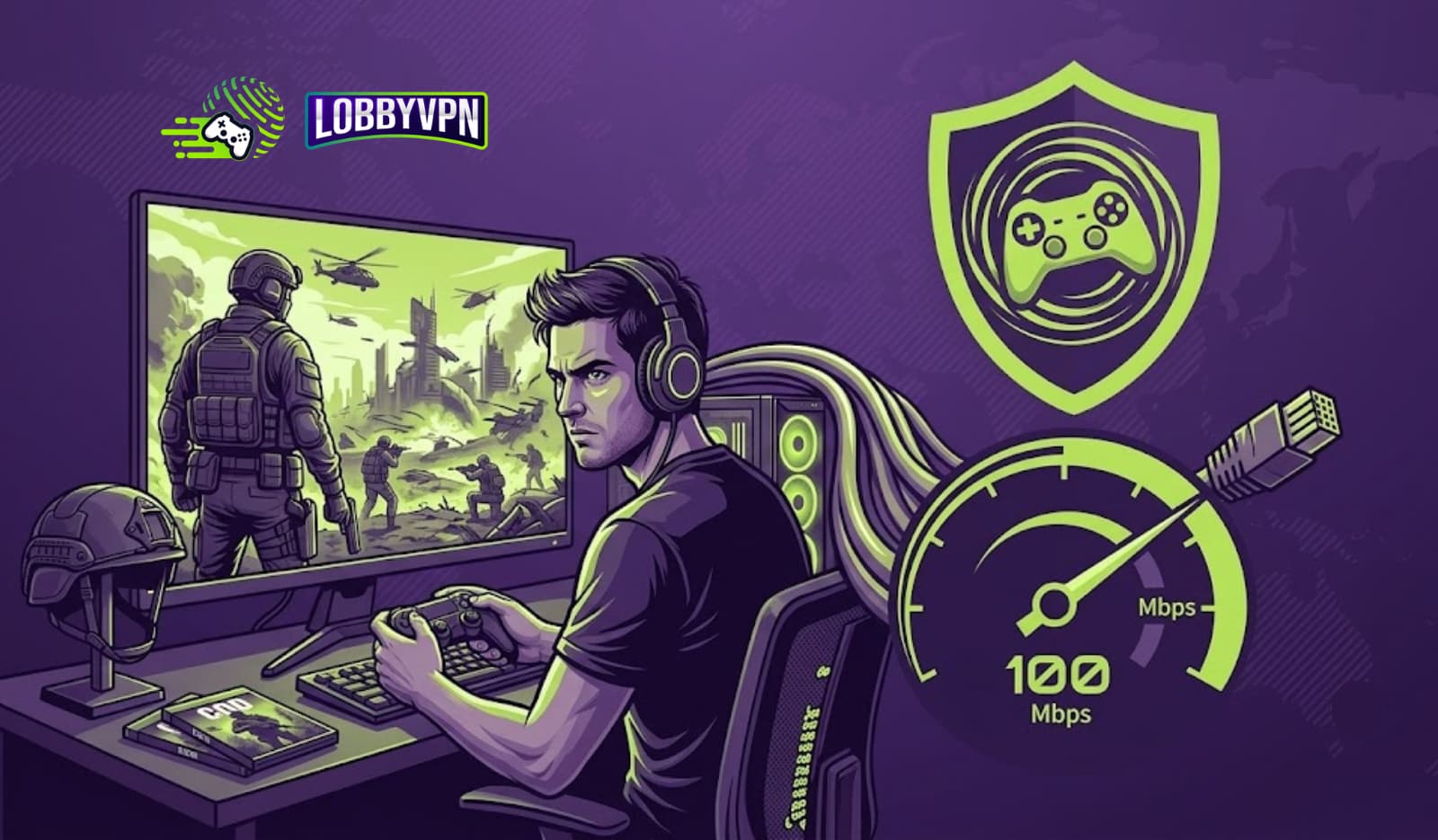
Asking “is 100 Mbps enough for Call of Duty” is like asking whether a six-lane highway is wide enough for one motorcycle — the answer is yes by a factor of about a hundred, because a live COD match uses well under 1 Mbps of actual bandwidth. Your gigabit-upgrade money, in other words, was never going to fix the rubber-banding.
Here is what makes the question worth a full article anyway: the reasons people ask it are real. The game shows a “bandwidth” number in its network stats and nobody explains it. A packet burst icon flashes mid-gunfight. Lag arrives every evening on a connection that speed-tests beautifully. All of those have genuine causes — ping, jitter, packet loss, upload saturation, and a villain called bufferbloat that fast plans actively hide — and every one of them survives a bandwidth upgrade untouched.
We diagnose these connections for a living at Lobby VPN, and this guide is the full diagnostic: exactly how much bandwidth Call of Duty uses (with the math), where 100 Mbps genuinely matters (downloads and shared households), what the in-game bandwidth stat and packet burst warnings actually mean, and the settings that fix the lag your speed test can’t see.
Table of Contents
- The 30-Second Answer
- Bandwidth vs Latency: The Highway and the Traffic Light
- How Much Bandwidth Call of Duty Actually Uses
- Where 100 Mbps Genuinely Matters
- The Bufferbloat Trap: Why Fast Lines Still Lag
- Decoding COD’s Network Stats: Bandwidth, Packet Burst, and Friends
- Best Internet and Network Settings for Call of Duty
- Can a VPN Improve Your Call of Duty Connection?
- Expert Insights from the Lobby VPN Team
- Statistics and Data: The Numbers Behind the Answer
- Common Mistakes That Waste Money and Milliseconds
- Best Practices for a Competition-Grade Connection
- Frequently Asked Questions
- Conclusion and Key Takeaways
The 30-Second Answer
Yes — 100 Mbps is far more than enough for Call of Duty. Live matches use roughly 0.3–1 Mbps of bandwidth (about 50–80 MB per hour), so even a 10 Mbps connection covers gameplay with room to spare. What 100 Mbps actually buys you is faster game downloads and headroom for a busy household. Lag, rubber-banding, and packet burst come from latency, jitter, packet loss, and bufferbloat — problems that live in your routing and router, not your download speed.
Activision’s own guidance reflects this: the game’s connection requirements are measured in fractions of a megabit, while its installs are measured in dozens of gigabytes. Speed helps you get the game; it barely touches how the game plays. The rest of this guide is the difference.
Bandwidth vs Latency: The Highway and the Traffic Light
Confusing these two numbers costs gamers more money than any other networking mistake, so let’s fix the mental model permanently.
Bandwidth is width. Measured in Mbps, it describes how much data can move per second — the number of lanes on the highway. Streaming 4K video needs lanes; downloading a 60 GB patch needs lanes.
Latency is travel time. Measured in milliseconds, ping describes how long one packet takes to reach the game server and return — how fast the traffic lights cycle. Gunfights are decided here, because Call of Duty sends thousands of tiny packets (positions, shots, hit confirmations) where each one’s arrival time matters and its size barely registers.
The motorcycle on the six-lane highway is the whole story: COD’s match traffic is so small that lane count stopped mattering long ago, while every red light — every millisecond of delay, every burst of jitter — shows up directly in your killcam. This is the Call of Duty latency vs bandwidth distinction in one sentence: bandwidth determines whether data can flow; latency determines whether it flows in time to matter.
Three companions complete the vocabulary. Jitter is inconsistency in latency — a steady 45 ms feels better than a spiky 25–80 ms, because hit registration assumes rhythm. Packet loss is packets that never arrive, forcing the game to guess (rubber-banding is the guess going wrong). Packet burst — COD’s own warning icon — means packets arriving in clumps rather than smoothly, which the netcode experiences as stutter. Notice what’s absent from all three definitions: your plan’s Mbps number.
How Much Bandwidth Call of Duty Actually Uses
Real numbers, itemized — because “not much” convinced nobody’s inner upgrade-shopper.
| Activity | Bandwidth Draw | Hourly Data |
|---|---|---|
| Multiplayer match traffic | ~0.3–0.5 Mbps | ~50–80 MB |
| Warzone match traffic (150 players) | ~0.5–1 Mbps | ~80–120 MB |
| Voice chat (in-game or Discord) | ~0.05–0.1 Mbps | ~30–50 MB |
| On-demand texture streaming | 1–25+ Mbps (configurable) | Varies enormously |
| Game download / patch | Everything you’ve got | 20–100+ GB per event |
Two rows deserve commentary. Match traffic — the row that decides gunfights — sits comfortably under 1 Mbps even in Warzone’s 150-player chaos, which is why the direct answer to how much bandwidth does Call of Duty use is “less than a music stream.” Meanwhile, on-demand texture streaming is the sleeper: this optional feature continuously downloads high-resolution textures during play, and at its default settings it can consume more bandwidth than the match itself by an order of magnitude. On constrained or shared connections, it is the single in-game setting most worth capping — more on that in the settings section.
The math scales down further than people expect: at 0.5 Mbps of match traffic, a 100 Mbps line is using half of one percent of its capacity for the thing you actually care about. Whatever is lagging you, it is not the pipe.
Where 100 Mbps Genuinely Matters
Bandwidth is not useless — it just helps in three specific places, none of them mid-gunfight.
Downloads and updates. Here the highway metaphor earns its lanes. Modern COD installs run 100+ GB and seasonal patches routinely exceed 30 GB; at 100 Mbps (about 12.5 MB/s), a 40 GB patch lands in under an hour, while a 25 Mbps line spends most of an evening on it. Faster plans buy you play time on patch day — a real benefit, honestly labeled.
The shared household. Your match uses under 1 Mbps, but your household doesn’t: one 4K stream draws ~25 Mbps, video calls take several more, and cloud backups devour whatever’s left. On a 100 Mbps line, that’s comfortable coexistence; on a 25 Mbps line, contention — and, crucially, the latency spikes contention causes (see bufferbloat, next section). Bandwidth’s real gaming gift is headroom that keeps other people’s traffic from queuing yours.
The upload side nobody checks. Plans are sold by download speed, but cable connections often pair 100 Mbps down with 10 Mbps up — and your match data, voice chat, and any streaming all ride that skinny upload lane. Saturate it (one cloud photo backup will do it) and your outbound game packets queue behind the backlog, spiking latency violently. When a “fast” connection lags inexplicably, the upload column of your speed test is the first suspect.
The honest purchasing rule that falls out: past roughly 50–100 Mbps down and 10–20 Mbps up, additional bandwidth does nothing for COD that a properly managed router wasn’t already doing better.
The Bufferbloat Trap: Why Fast Lines Still Lag
Here is the villain your speed test is designed not to catch — and the answer to “why does my 100 Mbps connection lag every evening?”
Bufferbloat happens when a device on your path (usually your own router or modem) holds oversized packet queues. The moment any household traffic saturates the line — a patch downloading, a backup uploading, a 4K stream buffering — those queues fill, and every packet behind them waits. Your game packets, tiny and urgent, sit in line behind someone’s cloud sync like an ambulance stuck behind parked trucks. Latency that idles at 20 ms spikes to 150–300 ms while your speed test still shows full marks, because speed tests measure lane count, not queue length.
The symptoms are diagnostic: ping that spikes exactly when someone else uses the connection, lag that correlates with downloads rather than time of day, and packet burst warnings during otherwise clean sessions. Confirmation takes two minutes — run a bufferbloat test (Waveform’s is the community standard) and read the letter grade; anything below A means your router queues under load.
The fixes, in order of effectiveness:
- Enable Smart Queue Management (SQM/QoS) on your router — algorithms like fq_codel or CAKE keep queues short by design, and routers that support them turn C-grade lines into A-grade ones without touching your plan.
- Prioritize gaming traffic where full SQM isn’t available; most modern router firmware offers at least device- or port-level QoS.
- Schedule the heavy lifting: patches, backups, and uploads run overnight, not during ranked.
- Mind the upload especially — it saturates first and hurts most, per the previous section.
Bufferbloat is the single most common reason players upgrade bandwidth and feel nothing: the queues just fill at a higher speed. Fix the queue, keep the plan.
Decoding COD’s Network Stats: Bandwidth, Packet Burst, and Friends
Call of Duty ships a genuinely useful network readout — Settings → Account & Network → Network Info, plus the optional in-match telemetry overlay — and decoding it turns folklore into diagnosis.
Latency (ping). Round-trip time to the dedicated game servers. Under 30 ms is competitive gold, 30–60 is healthy, 100+ is a handicap no aim assist rescues. Watch the stability, not just the number.
Packet loss. Anything persistently above 1–2 percent produces visible teleporting and hit-registration complaints. Loss usually lives in Wi-Fi interference or a failing cable segment — not in bandwidth.
Bandwidth (the confusing one). So what does bandwidth mean in Call of Duty’s stats? It displays the current throughput the game is using or measuring — not your plan’s capacity. Seeing a small number here is normal and healthy, because matches genuinely use under 1 Mbps. A “low bandwidth” warning, when it appears, almost always signals contention or instability on your line at that moment (bufferbloat, upload saturation, Wi-Fi drops) rather than an inadequate plan — which is why the warning strikes 500 Mbps fiber customers daily and confuses every one of them.
Packet burst. The clumped-arrival warning: packets reaching the game in stutters instead of a smooth stream. Causes rank, in our support experience: Wi-Fi interference first, bufferbloat under household load second, congested ISP routing third, overloaded texture streaming fourth, and genuine server-side hiccups last. Fixing packet burst is therefore the same checklist as everything else in this guide — wire the connection, tame the queues, cap texture streaming, and route around congestion — applied in that order.
Best Internet and Network Settings for Call of Duty
The complete tune-up, ordered by impact per minute of effort.
Step 1: Wire the Connection
Ethernet eliminates the interference jitter responsible for more packet burst warnings than every other cause combined. Players who genuinely can’t run a cable should work through our guide on how to reduce lag spikes over Wi-Fi — channel selection, band choice, and router placement recover a surprising share of the wired advantage.
Step 2: Cap On-Demand Texture Streaming
In COD’s graphics settings, either disable on-demand texture streaming or cap its bandwidth allowance to a modest figure. Cosmetic sharpness costs real network headroom, and on shared or upload-constrained lines this single toggle resolves “unstable connection” complaints with suspicious frequency.
Step 3: Tame the Queues
Run a bufferbloat test, then enable SQM/QoS on the router per the previous section. This is the fix that makes 100 Mbps feel like 100 Mbps under household load.
Step 4: Clean Up Name Resolution
Slow resolvers add delay at login, server selection, and every service handshake. Switching your console or PC to fast public resolvers is a five-minute change — our roundup of the best DNS servers for gaming benchmarks the options and walks through the setup per platform.
Step 5: Schedule and Separate
Patches download overnight; backups upload overnight; the second monitor’s stream lives off the gaming device. Discipline beats bandwidth, every evening.
Step 6: Verify With the Game’s Own Stats
Latency, packet loss, and the telemetry overlay — before and after each change, same server, same hour. Data ends the folklore.
Can a VPN Improve Your Call of Duty Connection?
Honestly: sometimes, for specific and testable reasons — and this is the point where bandwidth thinking gives way to routing thinking entirely.
Your packets’ path to Activision’s dedicated game servers is chosen by your ISP, and ISPs optimize for cost, not for your killcam. Evening congestion on shared exchange points, traffic shaping that deprioritizes game or UDP traffic, and simply inefficient routes all add latency that no bandwidth tier removes. A gaming VPN changes the path: encrypted traffic can’t be selectively shaped, and a well-peered exit near the game’s data center can sidestep the congested evening exchanges. The result — measurable on good routes, absent on already-clean ones — is lower or steadier ping despite the tunnel’s own small overhead, which modern protocols keep to 2–5 ms, as our benchmarks in the best VPN protocols for gaming guide document in detail.
The same honest framing from the rest of this article applies. A VPN will not add bandwidth, will not fix Wi-Fi interference, and will not cure bufferbloat inside your own router — those remain steps 1–3 above. What it addresses is the leg of the journey you otherwise can’t touch: the ISP’s routing decisions between your door and the server. Players whose in-game stats show clean local numbers but evening ping inflation are the exact profile that benefits; ten minutes of before-and-after testing settles it per route.
Expert Insights from the Lobby VPN Team
Diagnostic patterns from the connections we’ve actually examined:
Insight 1: The gigabit-upgrade disappointment is our most common ticket genre. Players arrive having tripled their bandwidth to fix rubber-banding, changed nothing, and concluded the internet is haunted. The diagnosis is almost always bufferbloat or upload saturation — problems that scale with the plan rather than away from it. We now open every such conversation with a Waveform test link instead of a server recommendation.
Insight 2: Texture streaming is the in-game setting nobody suspects. A player with pristine 15 ms idle ping showed packet burst every match; his on-demand texture streaming was pulling 20+ Mbps continuously on a 10 Mbps-upload cable line, and the returning acknowledgment traffic was drowning. Capping the feature fixed in one toggle what three router replacements hadn’t.
Insight 3: The upload column explains the “random” evening lag. Household diagnostics repeatedly trace 8 p.m. lag to a phone that starts backing up photos on Wi-Fi arrival — saturating a 10 Mbps upload in seconds. The pattern looks random because the cause walks in the door at different times. Check the upload graph before blaming Activision.
Insight 4: “Low bandwidth” warnings terrify exactly the wrong people. Fiber customers with 500 Mbps plans panic at the warning; players on genuinely thin DSL rarely see it. The warning fires on instability and contention, not capacity — which is why our first response is a jitter test, never a plan review.
Insight 5: Routing wins are real but regional — so we tell people to test, not trust. Our before/after data shows meaningful evening ping improvements through tunneled routes on some ISP-region pairs and near-zero difference on others. Publishing that honestly costs us the customers a myth would have caught and keeps the ones a benchmark convinced — the only kind who renew.
Statistics and Data: The Numbers Behind the Answer
Citable figures, sources named:
- Call of Duty match traffic runs roughly 50–80 MB per hour (~0.3–1 Mbps) — under one percent of a 100 Mbps line — while installs exceed 100 GB and seasonal patches routinely pass 30 GB. (Activision guidance; ISP usage analyses)
- Activision’s connection requirements are measured in fractions of a megabit, with official recommendations far below common broadband tiers — bandwidth was never the binding constraint. (Activision support documentation)
- Competitive play lives under 60 ms: ranked players target sub-30 ms and treat 100+ as a handicap, and consistency (jitter) predicts feel better than the average. (Activision network guidance; esports networking standards)
- Packet loss above 1–2 percent produces visible gameplay degradation — teleporting, failed hit registration — independent of connection speed. (Game networking literature; developer GDC talks)
- Bufferbloat can add 100–300+ ms of latency under load on otherwise fast connections, and Smart Queue Management (fq_codel/CAKE) largely eliminates it — the reason bufferbloat grades, not speed tiers, predict gaming feel. (Bufferbloat.net project; Waveform test methodology)
- One 4K stream consumes ~25 Mbps — a single household viewer uses 25–50x the bandwidth of the match itself, which is what “headroom” actually protects against. (Streaming platform specifications)
- WireGuard-class VPN protocols add just 2–5 ms of overhead, the margin that makes routing improvements a net win on congested paths. (Independent protocol benchmarks; ProPrivacy testing)
The quotable synthesis: Call of Duty is a latency game wearing a bandwidth costume — and every number above says the costume fooled a lot of upgrade budgets.
Common Mistakes That Waste Money and Milliseconds
- Buying bandwidth to fix latency. The motorcycle doesn’t need more lanes; diagnose ping, jitter, and loss before touching the plan.
- Trusting the speed test as a health check. It measures capacity at idle — precisely the condition your lag never occurs in. Bufferbloat tests measure what matters.
- Ignoring the upload column. 100/10 cable plans lag from the skinny side; one photo backup saturates it.
- Leaving texture streaming uncapped. The game’s own optional feature out-consumes the match by 20x on default settings.
- Gaming over congested Wi-Fi and blaming the ISP. Interference jitter impersonates every network problem in this article.
- Dismissing the packet burst icon as random. It ranks causes reliably: Wi-Fi, queues, routing, texture streaming — in that order.
- Running patches during ranked sessions. Sharing the line with a 40 GB download is voluntary bufferbloat.
- Assuming “low bandwidth” warnings mean a bigger plan. They fire on instability and contention; fiber customers see them daily.
- Expecting a VPN to add speed. It changes routes, not capacity — the benefit is latency on congested paths, verified by testing.
- Never opening the in-game network stats. The diagnosis has been on your screen the whole time, one settings menu away.
Best Practices for a Competition-Grade Connection
- Budget latency, not just bandwidth: past ~50–100 Mbps down and 10–20 up, spend upgrade money on a router with SQM instead of a bigger plan.
- Wire what competes; schedule what downloads. Ethernet for the gaming device, overnight windows for patches and backups.
- Grade your line under load — a bufferbloat test quarterly, and after any equipment change.
- Cap texture streaming and audit background apps on the gaming device; the quietest connection wins.
- Keep the full latency stack tuned: resolvers included — the best DNS servers for gaming roundup covers the login-and-menus slice of the budget. (If you optimized DNS in Step 4 already, this is your quarterly re-check reminder.)
- Test routing honestly: clean local stats plus evening ping inflation is the profile where tunneled routes help; benchmark before and after, and for the COD-specific protection layer — DDoS absorption for visible profiles — see our complete guide to the gaming VPN for COD players.
- Re-verify after each season. Patches change netcode behavior and data-center assignments; five minutes of stats-checking keeps the setup current.
- Start any VPN experiment free: the reputable free tiers ranked in our best free VPN for Call of Duty guide make the routing test a zero-cost experiment.
Frequently Asked Questions
Is 100 Mbps enough for Call of Duty?
Yes, comfortably — live matches use roughly 0.3–1 Mbps, so 100 Mbps provides about a hundred times the required headroom. The speed mainly benefits game downloads and busy households; lag issues stem from latency, jitter, packet loss, and bufferbloat instead.
How much bandwidth does Call of Duty use?
Approximately 50–80 MB per hour in standard multiplayer and up to ~120 MB per hour in Warzone — under 1 Mbps of continuous draw. Optional on-demand texture streaming can add 1–25+ Mbps on top, which is why capping it matters on constrained connections.
How much internet speed do I need for Call of Duty?
For gameplay alone, even 5–10 Mbps suffices with a stable connection. Practically, 50–100 Mbps down and 10–20 Mbps up gives comfortable headroom for downloads and household sharing — beyond that, connection quality (low jitter, managed queues) matters far more than speed.
What is the difference between ping and bandwidth?
Bandwidth is capacity — how much data can move per second (highway lanes). Ping is latency — how long one packet’s round trip takes (travel time). Call of Duty sends tiny, urgent packets, so ping decides gunfights while bandwidth mostly decides download times.
Does bandwidth affect Call of Duty gameplay?
Only at the extremes. Below a few Mbps or under heavy contention, yes; above that threshold, additional bandwidth changes nothing in-match. Jitter, packet loss, and routing quality are the gameplay variables.
What causes lag in Call of Duty?
In rough order of frequency: Wi-Fi interference, bufferbloat under household load, upload saturation, congested ISP routing at peak hours, uncapped texture streaming, and occasionally server-side issues. Notice bandwidth shortage barely makes the list on modern plans.
Why is Call of Duty showing low bandwidth?
The warning signals momentary instability or contention on your line — queues filling, upload saturating, Wi-Fi dropping — rather than an inadequate plan. Fiber customers on 500 Mbps see it regularly; the fix is stability work (wiring, SQM, capping texture streaming), not a speed upgrade.
How do I fix packet burst in Call of Duty?
Work the causes in order: switch to ethernet (Wi-Fi interference leads the list), enable SQM/QoS to defeat bufferbloat, cap on-demand texture streaming, schedule downloads away from sessions, and test alternate routing if evening congestion persists. The in-game stats confirm each step’s effect.
What is bufferbloat and why does it matter for COD?
Bufferbloat is latency caused by oversized packet queues in your router or modem: when any traffic saturates the line, game packets wait behind it, spiking ping 100–300 ms while speed tests still look perfect. Smart Queue Management (fq_codel/CAKE) on the router is the cure.
Is upload speed important for Call of Duty?
Critically — and it’s the side nobody checks. Your match data, voice chat, and any streaming ride the upload lane, which on cable plans is often just 10 Mbps. One cloud backup saturates it and queues your game packets; upload health explains a large share of “random” evening lag.
Can a VPN improve Call of Duty connection?
On congested or throttled routes, measurably yes: encrypted traffic defeats ISP shaping, and well-peered exits sidestep evening exchange congestion, lowering or steadying ping despite a 2–5 ms protocol overhead. On already-clean routes, expect little — benchmark before and after with the in-game stats.
Does a VPN increase bandwidth for gaming?
No — a VPN changes routing, never capacity, and typically costs a small percentage of raw throughput. Since matches use under 1 Mbps, that cost is irrelevant; the potential gain is latency and stability on bad routes, which is the metric that actually decides fights.
Why is my Call of Duty connection unstable on fast internet?
Because stability and speed are independent: interference, bufferbloat, upload saturation, and route congestion all coexist happily with a fast plan. Run a bufferbloat test, check the upload graph during lag, wire the connection, and read the in-game telemetry — the culprit is on that shortlist.
Conclusion: Stop Buying Lanes, Start Fixing Lights
The question answered itself in the first hundred words — 100 Mbps clears Call of Duty’s actual needs by two orders of magnitude — so the honest value of this guide was everything the question was really asking. Your lag lives in the traffic lights, not the lanes: in Wi-Fi jitter, in router queues that bloat under a family’s evening load, in a 10 Mbps upload lane nobody audits, in a texture-streaming setting quietly out-consuming the match, and in ISP routes chosen for cost rather than killcams. Every one of those has a fix in this article, and not one of the fixes is a bigger plan.
The competition-grade connection, it turns out, is mostly discipline: wired, queue-managed, upload-aware, texture-capped, benchmarked with the game’s own stats — and routed intelligently where the ISP’s evening path fails you. Spend accordingly.
Key Takeaways
- 100 Mbps is ~100x what COD matches need: gameplay draws 0.3–1 Mbps (~50–80 MB/hour); downloads and household headroom are what speed actually buys.
- Latency, jitter, packet loss, and packet burst decide gunfights — and none of them respond to bandwidth upgrades.
- Bufferbloat is the fast-line lag villain: saturated queues spike ping 100–300 ms while speed tests gleam; SQM/QoS is the cure.
- The upload lane fails first: 100/10 plans lag from the skinny side — audit it during every “random” lag episode.
- Cap on-demand texture streaming: the game’s own optional feature can out-consume the match twentyfold.
- VPNs fix routes, not capacity: measurable evening-ping wins on congested ISP paths, verified by ten minutes of before/after testing.
Route Smarter, Not Wider — Lobby VPN
Everything bandwidth can’t fix is the territory Lobby VPN was built for: WireGuard-first tunnels adding 2–5 ms of overhead, exits peered near Call of Duty’s data centers to sidestep evening exchange congestion, encryption that ends ISP traffic shaping, and DDoS-absorbing infrastructure for players whose profiles attract the wrong attention. Your plan already has the lanes — we optimize the lights.
Run the test at lobbyvpn.com: in-game stats open, same server, same hour, tunnel off then on. If the evening route is your problem, the numbers will say so in ten minutes — and if it isn’t, we just saved you a subscription and pointed you at your router.