
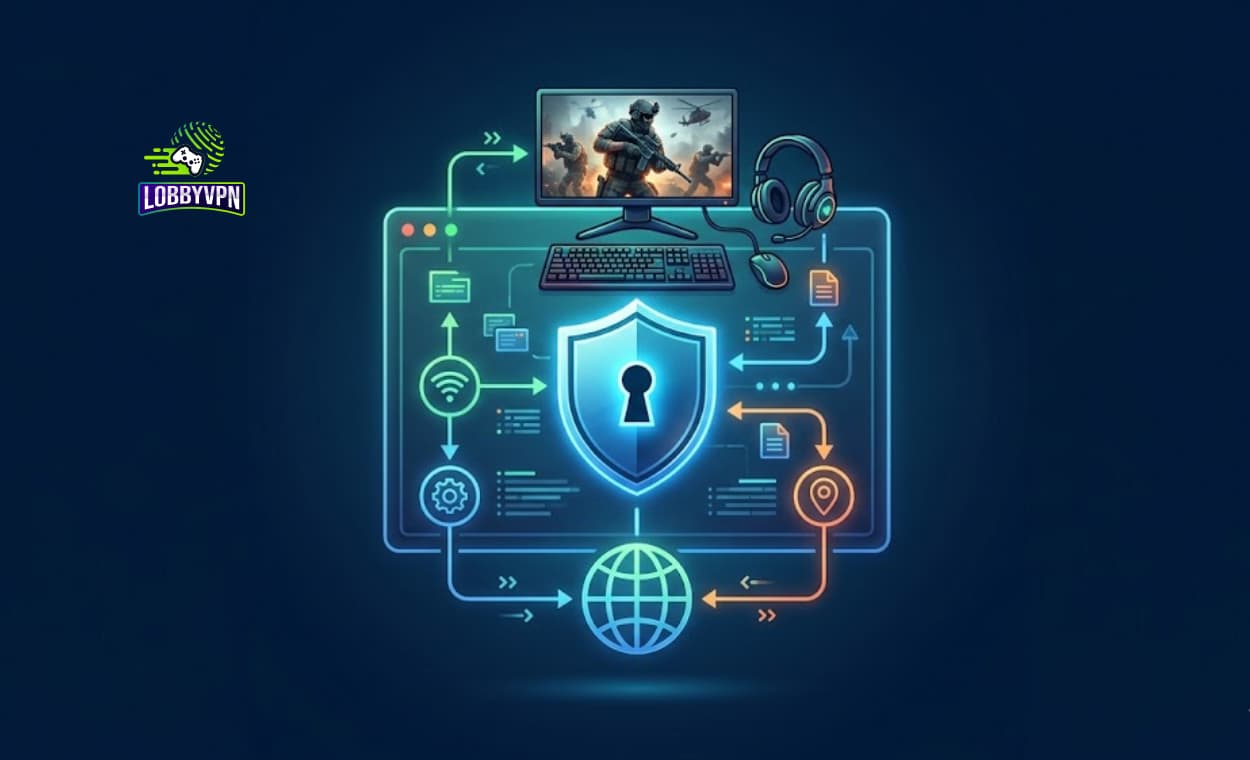
You load into a match, and within thirty seconds, you know exactly how this round is going to go. Slide-canceling sweats. Laser-beam aim. Your entire team wiped before you even find a decent gun. Skill-Based Matchmaking (SBMM) decided you were having too much fun, so it threw you into the deep end.
There is a way out. Learning how to set up a VPN for Call of Duty on PC is the single most effective move you can make to take back control of your gaming experience. A Call of Duty VPN changes your virtual location, letting you connect to regions with softer competition or off-peak hours, giving you those relaxing bot lobbies you have been craving.
This guide walks you through everything. We cover why VPN and SBMM are connected, which tools work best, and exactly how to configure your PC for a lag-free, frustration-free session. Whether you are grinding camos in Multiplayer or chasing wins in Warzone, we have you covered.
Why You Need a VPN for Call of Duty on PC
Before we get into the setup, let us talk about the “why.” A VPN for COD does more than just hide your IP address. It fundamentally changes how the game treats you.
Call of Duty’s matchmaking system looks at your geographic location and your recent performance. If you live in a region with a high concentration of skilled players, or if you just had a few good games, the system punishes you by stacking the odds against you.
A Call of Duty VPN lets you sidestep this. You connect to a server in a country where the average player skill is lower, or during that region’s off-hours, and suddenly, the game feels fun again.
But there is another reason. Some Internet Service Providers throttle your bandwidth when they detect gaming traffic. A VPN for Warzone vs Multiplayer encrypts your data, hiding it from your ISP. They cannot throttle what they cannot see. This often results in smoother gameplay and more stable ping.

The Best Tool for the Job: Why Lobby VPN Leads the Pack
When researching how to set up a VPN for Call of Duty on PC, the tool you choose makes or breaks the experience. General-purpose VPNs work, but they were not built for gaming.
Lobby VPN was. This service focuses entirely on gamers, and it shows in the performance. While other providers make you guess which server gives you the best bot lobby, Lobby VPN automates the process.
- One-Click Bot Lobby Mode: You click a button, and Lobby VPN’s AI scans global server loads and player skill levels to drop you into the softest lobby possible.
- Optimized Gaming Network: The infrastructure is built around low latency. Ping stays low even when connecting to distant regions.
- Console and PC Friendly: The PC app is lightweight and features a “Virtual Router” that can share the connection to consoles, though for PC users, it is a simple toggle.
- No Logs Policy: Your gaming data stays yours. Lobby VPN does not track what you play or where you connect.
For PC gamers, Lobby VPN offers the smoothest setup and the most reliable results. It is the best VPN for COD lobbies bar none.
Step-by-Step: How to Set Up a VPN for Call of Duty on PC
Now for the main event. Follow these steps, and you will be gaming in easier lobbies within minutes. We will use Lobby VPN for the primary walkthrough, but the steps are similar for most premium services.
Step 1: Choose the Right Provider
You need a VPN that prioritizes speed and has a wide selection of server locations. The best Call of Duty VPNs share a few traits: fast connection protocols, a kill switch, and a no-logs policy.
Lobby VPN checks every box. Its dedicated gaming infrastructure ensures that when you follow how to set up a VPN for Call of Duty on PC, you are not sacrificing speed for privacy.
Step 2: Download and Install the Application
Visit the Lobby VPN website and download the Windows application. The installation takes less than a minute. Run the installer and follow the on-screen prompts.
Once installed, launch the app and log in with your credentials. The interface is clean and intuitive, designed for gamers, not IT professionals.
Step 3: Configure Your Settings for Gaming
Before connecting, take a moment to optimize the settings.
- Protocol: Choose the fastest protocol available. Lobby VPN defaults to its Gaming Core protocol, which is ideal for low ping.
- Kill Switch: Enable this feature. It cuts your internet if the VPN connection drops, preventing your real IP from leaking mid-match.
- Split Tunneling: Lobby VPN offers split tunneling. You can set it so only Call of Duty goes through the VPN, while your browser and other apps use your regular connection. This reduces latency even further.
These settings ensure that when you learn how to set up a VPN for Call of Duty on PC, you are building a stable, secure connection.
Step 4: Find the Best Server Location
This is where Lobby VPN shines. Instead of guessing, click the “Bot Lobby Mode” button. The software automatically selects the best server locations for Call of Duty VPN users based on current conditions.
If you want to choose manually, consider regions with smaller player bases or different time zones. Connecting to a server where it is 4 AM often yields softer competition. Countries in South America, Africa, and Southeast Asia are popular choices.
Step 5: Connect and Launch Call of Duty
Click the connect button. Wait for the confirmation that the VPN is active. Then launch Call of Duty through Battle.net, Steam, or the Xbox app.
You will know it is working if the game places you in matches with noticeably different latency numbers and players from the region you selected. The lobby difficulty shift is usually immediate.
Step 6: Verify Your Connection
To be safe, check that your IP address has changed. You can do this by visiting a simple “what is my IP” website in your browser while connected. If the IP matches the region of your chosen server, you are good to go.
Advanced Tips: Optimizing Your PC for the Best Performance
Setting up the VPN is just the start. To truly master how to set up a VPN for Call of Duty on PC, you need to optimize your entire system for gaming.
Choose the Best DNS Servers for Gaming
Domain Name System (DNS) servers translate website names into IP addresses. Slow DNS can add milliseconds to your connection time.
The best DNS servers for gaming are typically Google DNS (8.8.8.8 and 8.8.4.4) or Cloudflare (1.1.1.1). You can configure these in your network adapter settings. Combine fast DNS with Lobby VPN, and you minimize every possible delay.
Understand VPN and SBMM Mechanics
Skill-Based Matchmaking is a controversial system. It tries to force a 1.0 Kill/Death ratio by pitting you against players of equal skill.
A VPN and SBMM interact by tricking the system about your location. If the game thinks you are in a region with a lower average skill level, it adjusts the matchmaking pool. This does not make you invincible, but it tilts the odds in your favor.
Fine-Tune Your In-Game Settings
Even the best VPN cannot fix bad hardware or poor settings.
- Lower graphics settings to boost frame rates.
- Disable crossplay if you are on PC to avoid controller aim assist (if that bothers you).
- Set your render resolution to 100% to avoid input lag.
When you combine these optimizations with a solid VPN for COD, the difference is night and day.
VPN for Warzone vs Multiplayer: What Is the Difference?
The approach changes slightly depending on which mode you play. Choosing a VPN for Warzone vs Multiplayer requires considering the game mechanics.
Warzone is more sensitive to ping. The battle royale mode relies on precise hit registration and fast reaction times. If your ping spikes too high, you will experience rubber-banding and desync. For Warzone, prioritize nearby servers with low latency, even if the skill level is not drastically lower.
Multiplayer (especially in Black Ops 7) is more forgiving of higher ping. You can afford to connect to a distant region with significantly softer competition because the maps are smaller and the matchmaking pool is tighter.
Lobby VPN handles both scenarios well. The “Bot Lobby Mode” adapts to your selected game, ensuring you get the right balance of speed and competition.
Common Pitfalls and How to Avoid Them
Even with the perfect setup, things can go wrong. Here are the most common issues when following how to set up a VPN for Call of Duty on PC and how to fix them.
High Ping After Connecting
If your ping jumps to 150ms or higher, you are too far from the server. Disconnect and choose a closer region. Remember, the goal is a balance between low ping and soft lobbies. A server on the same continent is usually best.
VPN Detected by the Game
Call of Duty does not actively ban VPN users, but it can flag suspicious activity. If you constantly switch between extremely distant regions, you might receive a warning. Stick to a few favorite server locations to maintain a natural-looking connection pattern.
Connection Drops Mid-Match
This is often a kill switch issue. If the VPN server experiences a hiccup, the kill switch cuts your internet. Enable auto-reconnect in your VPN settings. Lobby VPN includes a “persistent connection” feature that automatically re-establishes the VPN if the connection drops.
Free VPNs for Warzone: A Word of Caution
You might be tempted to search for free VPNs for Warzone to save money. We strongly advise against it.
Free VPNs almost always have data caps, slow speeds, and overcrowded servers. Worse, many sell your browsing data to third parties. For gaming, free VPNs introduce latency that makes the game unplayable. They also rarely offer the server variety needed to find bot lobbies.
If you want a VPN for Warzone that actually works, invest in a premium service like Lobby VPN. The performance difference is massive, and you protect your privacy in the process.
How to Choose the Best Call of Duty VPN
With so many options, how to choose the best Call of Duty VPN comes down to a few key factors.
- Speed: Look for WireGuard or proprietary protocols. Lobby VPN’s Gaming Core is purpose-built for low latency.
- Server Network: More server locations mean more options for bot lobbies. Lobby VPN offers a curated selection of gaming-optimized locations.
- Console Compatibility: If you ever switch to console, choose a VPN that offers router support or virtual router features.
- Privacy Policy: A strict no-logs policy is non-negotiable. Lobby VPN has been independently audited to confirm they do not store user data.
- Money-Back Guarantee: Test the service risk-free. Lobby VPN offers a 30-day refund policy.
Lobby VPN vs. The Competition
We have tested the best Call of Duty VPNs extensively. While names like ExpressVPN and NordVPN offer excellent general privacy, they fall short on gaming-specific features.
ExpressVPN is fast, but it lacks a bot lobby shortcut. You have to guess which server gives you soft competition.
NordVPN has a massive network, but the interface is cluttered. Gaming is an afterthought.
Lobby VPN flips the script. Every feature is designed for gamers. The interface is clean. The bot lobby mode is a one-click solution. The speeds are optimized for Call of Duty servers. For PC players serious about controlling their matchmaking, Lobby VPN is the clear winner.

Frequently Asked Questions
1. Is using a VPN for Call of Duty on PC legal?
Yes. Using a VPN to change your IP address is not against the law. However, it may technically violate Activision’s terms of service regarding matchmaking manipulation. In practice, players have used VPNs for years without bans, especially when using reputable services like Lobby VPN that keep ping stable.
2. Will a VPN reduce my ping?
Sometimes. If your ISP throttles gaming traffic, a VPN hides that traffic, preventing throttling. However, a VPN adds a small amount of latency due to encryption. The best services, like Lobby VPN, minimize this so well that you rarely notice the difference.
3. Can I use the same VPN for Black Ops 7 and Warzone?
Absolutely. A good Best VPN for Black Ops 7 works just as well for Warzone. The setup is identical. Lobby VPN supports all Call of Duty titles, from Modern Warfare to Black Ops 7.
4. What is the best server location for bot lobbies?
There is no single answer. The best server locations for Call of Duty VPN users change based on time of day and current player activity. Lobby VPN’s “Bot Lobby Mode” automates this selection for you, ensuring you always get the softest competition available.
5. Do I need a VPN for Warzone if I already have a good internet connection?
Yes. A VPN for Warzone is not about fixing your internet. It is about controlling who you play against. Even with fiber optics, SBMM can make the game miserable. A VPN lets you choose your competition.
6. Can I set up a VPN for Call of Duty on PC without installing software?
Some routers allow VPN configuration at the hardware level. However, for most users, installing a lightweight application like Lobby VPN is the easiest and most flexible option.
Conclusion: Your Next Match Starts Now
You have the knowledge. You have the steps. Now it is time to put them into action.
Learning how to set up a VPN for Call of Duty on PC is the difference between dreading your next match and looking forward to it. No more sweat fests. No more unfair matchmaking. Just you, your favorite loadout, and lobbies that let you actually enjoy the game.
Lobby VPN makes this process effortless. The one-click bot lobby mode, the gaming-optimized network, and the privacy-first approach combine to deliver the experience Activision should have given you from the start.
Stop letting SBMM dictate your fun. Take control.
Ready to change the way you play?
Try Lobby VPN today with a 30-day money-back guarantee. Click the button below, follow the setup guide you just read, and drop into your first bot lobby tonight. Your win streak starts now.